A real-world, step-by-step walkthrough — including every problem I hit along the way and how I fixed it
Running Microsoft Entra Connect Sync directly on a domain controller is common in smaller environments. It is quick to install and it works.
However, it means your sync engine, its local SQL database, and its administrative accounts all live on a Tier-0 asset. It usually means someone is RDP-ing into a DC regularly just to check sync health.
In our case, a security assessment flagged this exact issue. The sync administration account was a member of Enterprise Admins and logged on interactively to the PDC Emulator.
This article describes moving Entra Connect Sync from a domain controller to a dedicated member server.
Additionally, using Microsoft’s supported swing migration approach (staging mode), it achieved zero downtime.
It offered an instant rollback path at every step until the very end.
| Naming used in this article All hostnames, accounts, domains and tenant details have been replaced with generic placeholders: • DC-01 — the domain controller (PDC Emulator) that originally hosted Entra Connect • DC-02 / DC-03 — the other domain controllers • SYNC-01 — the new dedicated member server • contoso.local / contoso.onmicrosoft.com — on-premises domain and Entra ID tenant • old-sync-admin — the legacy account used to administer sync on the DC • svc-entrasync — the new dedicated AD DS Connector service account |
Additionally, why move Entra Connect off the domain controller in Microsoft environments?
- Microsoft’s guidance treats a dedicated, domain-joined member server as the standard deployment pattern for Entra Connect Sync.
- Since build 1.4.x, the installer refuses to accept a Domain Admin or Enterprise Admin account as the AD DS Connector account — a strong signal of where Microsoft wants you to be.
- It removes the need for any account to log on interactively to a DC just to administer sync.
- It lets you strip Tier-0 group membership (Enterprise Admins, Domain Admins) from the sync administration account.
- It shrinks the attack surface of the DC — no SQL LocalDB, ODBC/OLE DB drivers or sync agents on a Tier-0 box.
2. The Approach: Swing Migration with Staging Mode
A server in staging mode performs full imports and synchronization exactly like a live server, but it never exports anything to Entra ID or on-premises AD, and it does not perform password hash sync or password write-back. It is a dry run against real, live data. The plan therefore looks like this:
| Phase | What happens | Production impact |
| 1. Prepare | Build member server, confirm network/ports, stage service account permissions | None |
| 2. Export | Export the current Entra Connect configuration from the DC | None |
| 3. Install (staging) | Install Entra Connect on the new server, import config, enable staging mode | None |
| 4. Validate | Compare configs, review pending exports, observe for 24–48 hours | None |
| 5. Cutover | Old server → staging; new server → active | Brief, minimal |
| 6. Observe | Monitor the new active server, keep old one in staging as rollback | None |
| 7. Decommission | Uninstall from DC, clean up the legacy account | None |
| The golden rule Never let two Entra Connect servers export at the same time. One active, everything else in staging. |
3. Capture the Current Configuration First
Before building anything, I documented three things on the existing server that I would need to reproduce exactly.
3.1 User sign-in method
Our sign-in page showed “Do not configure” with single sign-on unchecked. In the exported JSON this appears as “authenticationPolicy”: [“ExternallyManaged”]. This option tells Entra Connect not to manage the sign-in method at all.
| Why this matters so much If the new installation accidentally lands on a different option (for example, Password Hash Synchronization), the moment it becomes active it can change how every user in the tenant signs in. I built three explicit visual checkpoints into the plan to make sure this never happened. |
Shows: User sign-in page with “Do not configure” selected Before publishing, blur/redact: nothing sensitive normally — check the title bar for the server name
3.2 Optional features
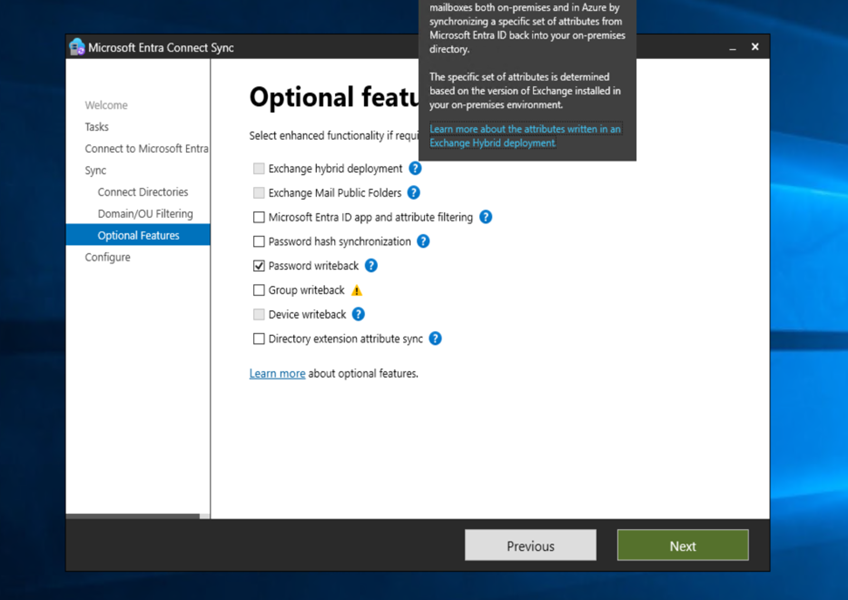
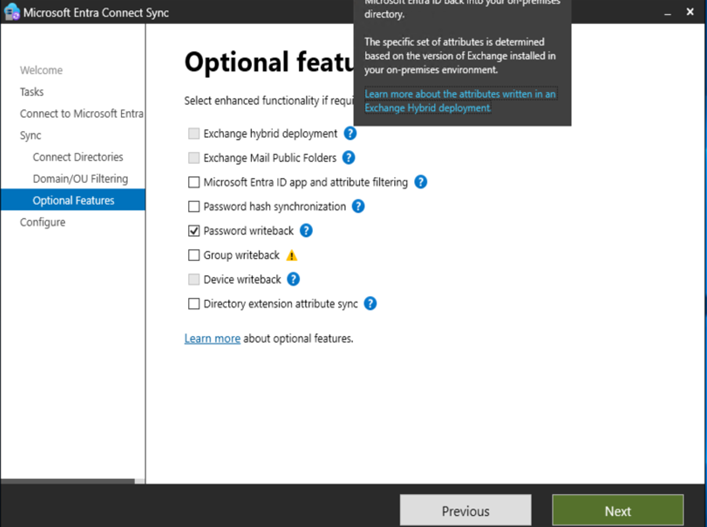
Only Password write-back was enabled. Password hash sync, Exchange hybrid, group write-back, device write-back and directory extensions were all off. This determines exactly which AD permissions the new service account needs — no more, no less.
3.3 Custom synchronization rules
We had one custom inbound rule (precedence 50) that hides users from the Exchange Online GAL based on an extension attribute. I documented it fully in case it needed recreating by hand. (Spoiler: on current versions, the JSON export/import carried it over automatically — but verify it, don’t assume it.)
4. Phase 1 — Prepare the New Member Server
- Build a Windows Server 2022 VM, join it to the domain, place it in a server OU (never the Domain Controllers OU).
- Patch it fully.
- Download the latest Entra Connect Sync installer directly from the Microsoft Entra admin center. I used version 2.6.92.
- Create a dedicated AD DS Connector account (svc-entrasync) and grant it local Administrator on the new server only — not Domain Admins or Enterprise Admins.
4.1 TLS 1.2 — check before you change the registry
Microsoft’s TLS 1.2 enforcement registry steps only apply to Entra Connect versions 2.3.20.0 through 2.4.129.0. Version 2.4.131.0 and later do not require it. Since I was installing 2.6.92, I skipped this step entirely — no registry edits, no reboot.
4.2 Test connectivity — don’t trust ping
Ping worked to all three DCs, so I assumed the network was fine. It wasn’t. Test the actual TCP ports Entra Connect needs:
| Test-NetConnection DC-01.contoso.local -Port 389 # LDAP – data import Test-NetConnection DC-01.contoso.local -Port 88 # Kerberos Test-NetConnection DC-01.contoso.local -Port 135 # RPC endpoint mapper Test-NetConnection DC-01.contoso.local -Port 445 # SMB – password writeback Test-NetConnection login.microsoftonline.com -Port 443 Test-NetConnection graph.microsoft.com -Port 443 |
| Gotcha #1: everything except ICMP was blocked Every TCP port failed to every DC — even DC-01 on the same subnet — while ping succeeded. Windows Firewall was not the cause (it was actually disabled on the DC). The culprit was our EDR platform, which treated a brand-new server suddenly talking LDAP/Kerberos/RPC/SMB to a domain controller as lateral-movement behaviour and silently blocked it. Fix: the security team added the new server to the appropriate EDR policy/exclusion group. All ports opened immediately. |
| About port 9389 (AD Web Services) My first symptom was Get-ADUser failing with “Unable to contact the server… Active Directory Web Services”. Port 9389 is used by the ActiveDirectory PowerShell module, not by the Entra Connect sync engine. Microsoft lists 9389 as only needed when the wizard installs AD FS with a gMSA. Don’t let a 9389 failure alone block your migration — but do check LDAP 389, because that one is essential. |
5. Pre-Stage the Connector Account’s AD Permissions
Granting permissions before running the installer avoids the classic “installed fine, but sync doesn’t work” outcome. Microsoft ships the ADSyncConfig PowerShell module for exactly this. Because we only use Password write-back, three cmdlets are enough:
| Import-Module “C:\Program Files\Microsoft Azure Active Directory Connect\AdSyncConfig\AdSyncConfig.psm1″ $dn = (Get-ADUser svc-entrasync).DistinguishedName $dn # always print it – an empty $dn causes a confusing binding error Set-ADSyncBasicReadPermissions -ADConnectorAccountDN $dn Set-ADSyncMsDsConsistencyGuidPermissions -ADConnectorAccountDN $dn Set-ADSyncPasswordWritebackPermissions -ADConnectorAccountDN $dn |
| Gotcha #2: the module isn’t there yet AdSyncConfig.psm1 ships with Entra Connect itself, so it doesn’t exist on the new server before installation. Either copy the AdSyncConfig folder from the existing installation, or simply run the commands on the server that already has Entra Connect, targeting the new account’s DN. The module only writes ACEs over LDAP, so it doesn’t matter which machine issues them. |
Do not run the Password Hash Sync, Group Writeback or Exchange Hybrid permission cmdlets if you don’t use those features — unused permissions are just attack surface.
6. Phase 2 — Export the Configuration from the DC
- Open the Entra Connect wizard on DC-01 → Configure → View or export current configuration → Export Settings.
- Optionally, also run the full migration-settings backup script (from PowerShell, not Command Prompt):
| cd “C:\Program Files\Microsoft Azure Active Directory Connect\Tools” .\MigrateSettings.ps1 -ServerConfiguration “C:\Temp\EntraConnectBackup” |
| Gotcha #3: the script opens in Notepad If you run a .ps1 from cmd.exe, Windows opens it in Notepad instead of executing it. Type powershell first, or use: powershell.exe -ExecutionPolicy Bypass -File .\MigrateSettings.ps1 -ServerConfiguration “C:\Temp\EntraConnectBackup” |
7. Phase 3 — Install on the New Server in Staging Mode
- Run the installer as Administrator and choose Customize (never Express).
- Check “Import synchronization settings” and browse to the exported JSON. Note that the button now says Install rather than Next — that’s expected.
- Let it install the required components (SQL Server 2019 Express LocalDB is provisioned automatically).
- On the User sign-in page, confirm “Do not configure” — Checkpoint 1.
- Sign in with a Hybrid Identity Administrator / Global Administrator for the cloud side, and enter svc-entrasync for the AD DS Connector.
- On the Ready to configure page, make sure “Enable staging mode” is CHECKED — the most important checkbox in the whole migration.
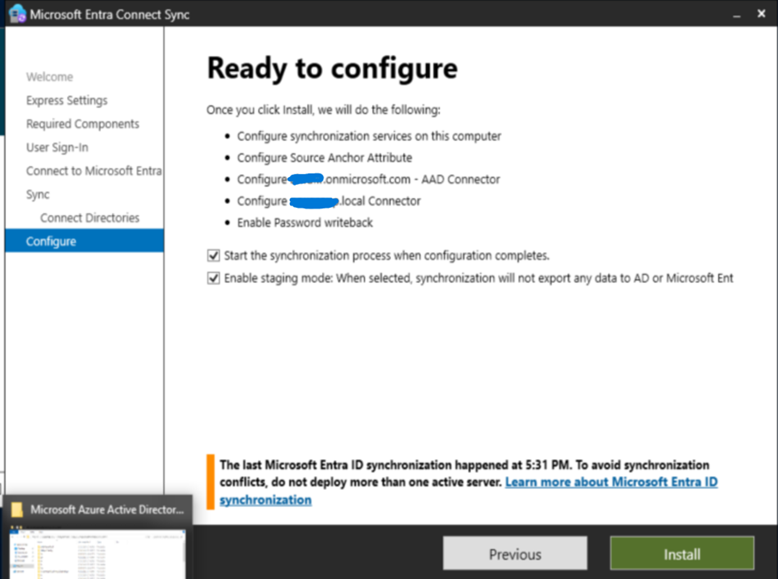
The yellow warning on this page (“do not deploy more than one active server”) is expected — it’s simply detecting the existing active server. With staging mode checked, that’s exactly the state you want.
| Gotcha #4: “Could not read key from registry” After installation, the wizard failed to launch with a COM registry read error (REGDB_E_READREGDB), even when run as Administrator. In my case this was resolved on the endpoint-security side; other common causes are a temporary user profile, a non-elevated session, or a damaged .NET installation (sfc /scannow). Log off/on and check your EDR console before reinstalling anything. |
| Gotcha #5: the Synchronization Rules Editor was completely empty Not even the default rules appeared. The service was running and the account was in the server’s local ADSyncAdmins group. Cause: I was already logged on when the installer added me to ADSyncAdmins, so my logon token didn’t contain the new group. Log off and back on — all rules, including the custom one, appeared immediately. Also note: on a DC there is no local SAM, so the old install’s ADSyncAdmins/ADSyncOperators groups are domain groups. On a member server they are local groups. Check with Get-LocalGroupMember, not Get-ADGroupMember. |
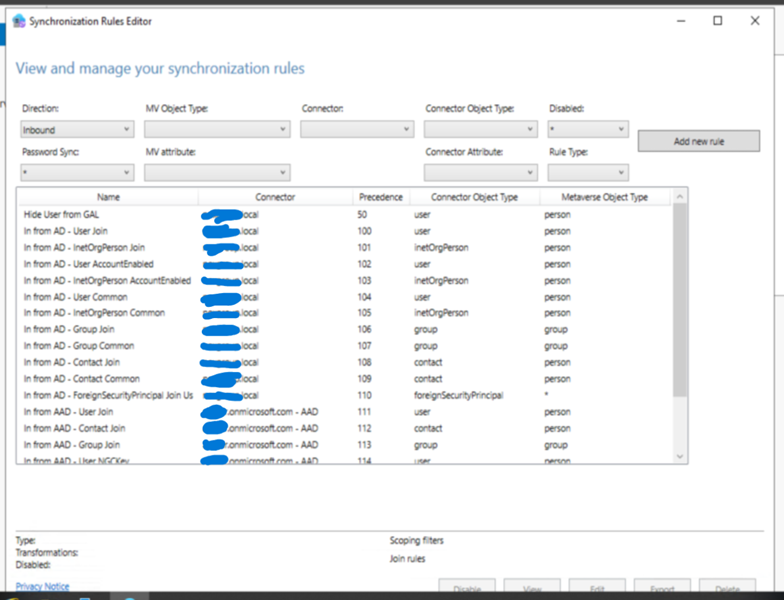
8. Phase 4 — Validate Before Cutover
8.1 Compare the exported and applied configuration
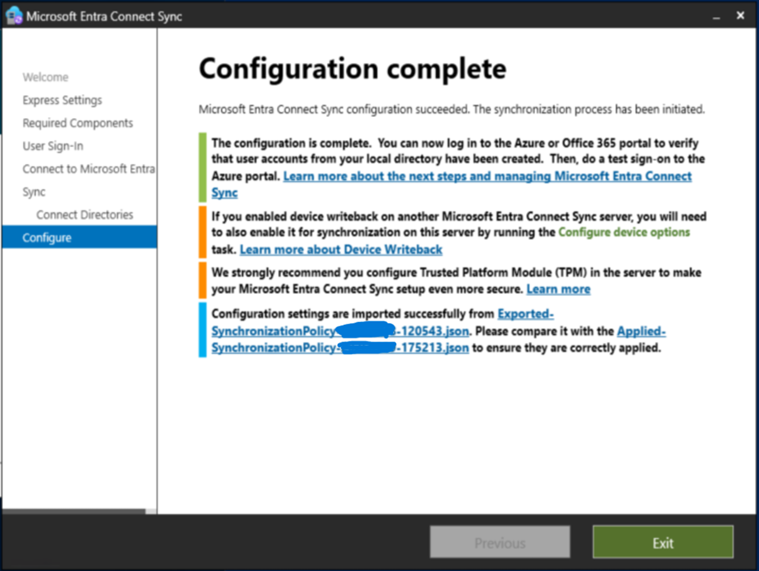
The final installer page links an Exported-SynchronizationPolicy JSON and an Applied-SynchronizationPolicy JSON. Compare them side by side. In my case the only differences were exactly the expected ones:
| Field | Difference | Expected? |
| author / timeCreated / hostName | Different account, time, server | Yes |
| azureADConnectVersion | Old build vs. 2.6.92 | Yes — desired |
| serviceAccountType | Auto-generated MSA (on DC) vs. Virtual Service Account (on member server) | Yes — default for each server type |
| onPremisesDirectoryAccount | Old MSOL_ account vs. svc-entrasync | Yes — the intended change |
| authenticationPolicy | ExternallyManaged in both | Identical |
| OU inclusions/exclusions, all standard rules, custom rule, tenant ID, deletion limit | None | Identical |
8.2 Run an initial full sync
| Start-ADSyncSyncCycle -PolicyType Initial Get-ADSyncScheduler # wait for SyncCycleInProgress : False |
The Full Synchronization run completed with status success, zero flow errors and zero metaverse deletes.
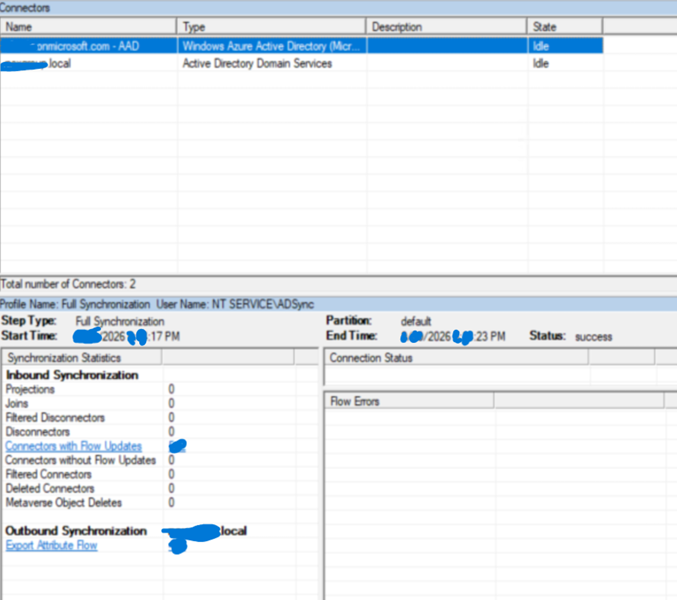
8.3 Review pending exports
Synchronization Service Manager → Connectors → the Entra ID connector → Search Connector Space → Scope: Pending Export. Note that the Search button stays grayed out until you tick at least one of Add / Modify / Delete.
My result was zero pending exports. Since the old server had been keeping Entra ID current all along, zero simply means the new server calculates exactly the same state as production — the ideal outcome. To rule out the “nothing imported at all” explanation, I confirmed the connector spaces were populated and the run history showed hundreds of objects processed.
8.4 Observe for 24–48 hours
I left both servers running for about 36 hours. The decisive check: the old server’s Operations tab showed regular Export steps, while the new server’s showed only Delta Import and Delta Synchronization — never an Export.
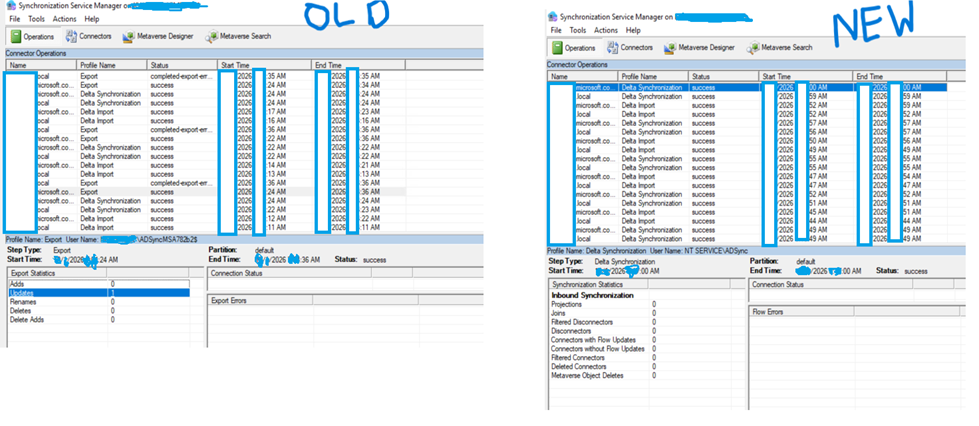
9. Phase 5 — The Cutover
I scheduled the cutover just after business hours. Technically the 30-minute sync schedule doesn’t matter — the staging toggle takes effect when you click it — but fewer active users means fewer in-flight password write-backs.
- Checkpoint 3: on SYNC-01, open Configure → Change user sign-in, confirm “Do not configure”, then click Cancel (not Next — Next walks you into re-applying the sign-in configuration).
- On DC-01: Configure → Configure staging mode → check Enable staging mode → Configure.
- Immediately after, on SYNC-01: Configure → Configure staging mode → uncheck Enable staging mode → check Start the synchronization process → Configure.
- Verify on SYNC-01:
| Get-ADSyncScheduler # StagingModeEnabled : False, SyncCycleEnabled : True Start-ADSyncSyncCycle -PolicyType Delta |
Leaving “Start the synchronization process” checked on the old server is harmless — staging mode always blocks exports regardless. Within minutes, Export steps appeared in SYNC-01’s run history and stopped appearing on DC-01.
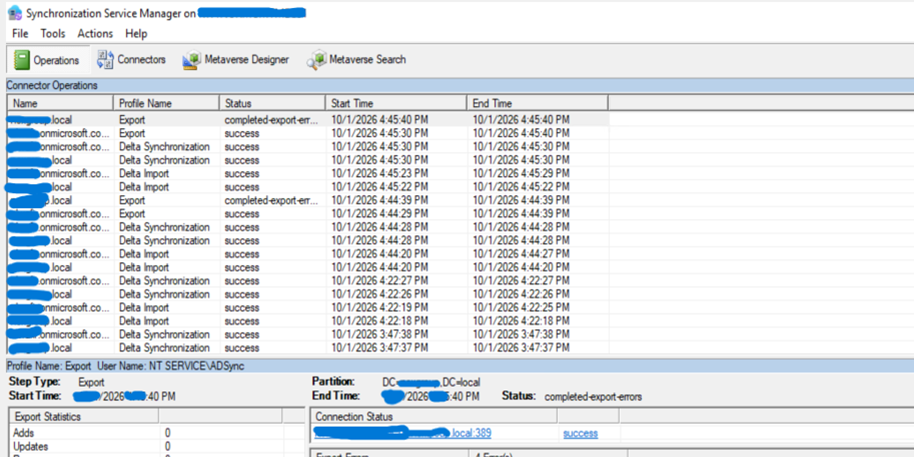
Shows: New server’s Operations tab with Export steps and connection status “success”
10. The Post-Cutover Surprise: AdminSDHolder
The first exports from the new server completed, but four specific user accounts showed permission-issue errors on the on-premises connector, on every cycle. Export statistics otherwise showed zero adds, updates or deletes elsewhere — the problem was strictly isolated.
Cause: those accounts had adminCount = 1 and broken permission inheritance, left over from past membership in privileged groups. AdminSDHolder stamps a protected ACL on such accounts and never removes it automatically when the account leaves the group. The new, correctly least-privileged connector account therefore cannot write back to them — the old over-privileged setup had simply masked the problem.
Fix, per account, only after confirming it is not currently in any protected group:
| Get-ADUser <sam> -Properties adminCount, MemberOf | Select Name, adminCount, MemberOf # 1) Re-enable inheritance FIRST (ADUC > Advanced Features > Security > Advanced > # Enable inheritance), or: $u = Get-ADUser <sam> $acl = Get-Acl “AD:\$($u.DistinguishedName)” $acl.SetAccessRuleProtection($false, $true) Set-Acl “AD:\$($u.DistinguishedName)” $acl # 2) Then clear the flag Set-ADUser <sam> -Clear adminCount |
| Two tips If clearing adminCount first returns error 8344 “Insufficient access rights”, restore inheritance first and try again. If some users have two accounts with the same display name (e.g. one for mail, one for admin), never target by display name — use SamAccountName and match the DistinguishedName shown in the export error. |
11. Phase 7 — Decommission the Old Installation
I waited until the new server had run cleanly for over 48 hours and, importantly, until the DC had a fresh successful backup — uninstalling is the one step with no instant rollback. Final prep-checks:
| # On SYNC-01: StagingModeEnabled : False # On DC-01: StagingModeEnabled : True Get-ADSyncScheduler |
Then uninstall Microsoft Entra Connect Sync on DC-01 with “Also uninstall supporting components” checked. Before doing so I listed other installed products to confirm nothing else depended on the SQL client components (backup agent, hypervisor tools, EDR and the identity-protection sensor do not).
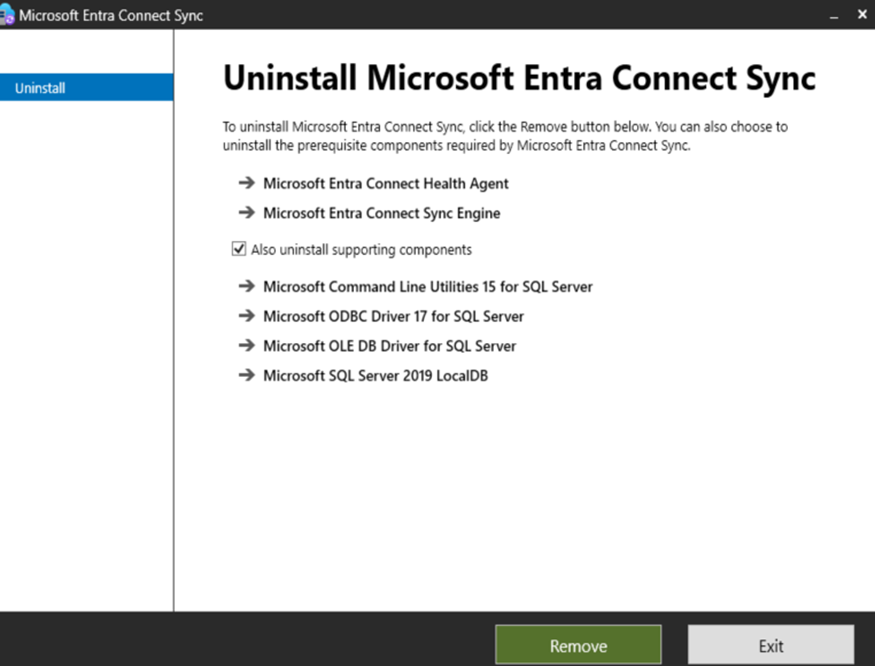
After a reboot, verify the DC is healthy and the new server is unaffected:
| Get-Service ADSync -ErrorAction SilentlyContinue # returns nothing Get-Service NTDS, Netlogon, DNS, KDC | Select Name, Status # all Running repadmin /showrepl # all successful # On SYNC-01: Get-ADSyncScheduler # still active and healthy |
Also check Programs and Features for a leftover “Azure AD Connect Agent Updater” entry and remove it if present.
12. Clean Up the Legacy Sync Account
| Remove-ADGroupMember -Identity “Remote Desktop Users” -Members old-sync-admin Remove-ADGroupMember -Identity “Enterprise Admins” -Members old-sync-admin Remove-ADGroupMember -Identity “ADSyncAdmins” -Members old-sync-admin Remove-ADGroupMember -Identity “ADSyncOperators” -Members old-sync-admin # restore inheritance, then: Set-ADUser old-sync-admin -Clear adminCount Disable-ADAccount old-sync-admin # disable, monitor ~2 weeks, then delete |
You do not need to add the new service account to the domain-level ADSyncAdmins/ADSyncOperators groups — those were artifacts of the DC-hosted install. The new server has its own local groups, created by the installer.
13. Lessons Learned
- Staging mode makes this migration genuinely low-risk. Phases 1–4 can safely run during business hours; only the cutover benefits from a quiet window.
- Test TCP ports, not ping. An EDR platform can silently block AD protocols from a new host.
- “Do not configure” on the sign-in page deserves explicit checkpoints — the blast radius of getting it wrong is the entire tenant.
- Prep-stage least-privilege connector permissions with ADSyncConfig, and only for the features you actually use.
- Zero pending exports after a full sync is the best possible validation result, not a failure.
- Expect AdminSDHolder leftovers to surface once you stop using an over-privileged sync account — it’s a sign your hardening is working.
- Don’t decommission the old server until you have a fresh, verified backup of it.
14. Troubleshooting Quick Reference
| Symptom | Likely cause | Fix |
| Ping works, all TCP ports fail | EDR / host security blocking AD protocols | Add the new server to the EDR policy/exclusion group |
| Get-ADUser: “Unable to contact the server… ADWS” | Port 9389 blocked | Not required by the sync engine; fix for admin convenience |
| ADSyncConfig.psm1 not found | Entra Connect not installed yet on that host | Copy module from existing install, or run on the old server |
| “Cannot bind argument… empty string” | $dn was never populated | Print $dn and fix the Get-ADUser failure first |
| .ps1 opens in Notepad | Run from cmd.exe | Start PowerShell or use powershell.exe -File |
| “Could not read key from registry” | Elevation, temp profile, security agent, .NET | Run elevated, log off/on, check EDR, sfc /scannow |
| Rules Editor completely empty | Stale logon token after ADSyncAdmins was added | Log off and back on |
| Search greyed out in Search Connector Space | No operation type selected | Tick Add, Modify and/or Delete |
| permission-issue (8344) on a few users after cutover | adminCount=1 / inheritance disabled (AdminSDHolder) | Re-enable inheritance, then clear adminCount |
References: Microsoft Learn — Entra Connect staging server and disaster recovery; Import and export Entra Connect configuration; Upgrade from a previous version (swing migration); Accounts and permissions; Configure AD DS Connector account permissions; Hybrid identity required ports and protocols; TLS 1.2 enforcement for Entra Connect.
